How to Embed a Gaussian Splat Viewer on Your Website
Embed a Gaussian splat viewer or 3D tour with responsive iframe code, mobile checks, CMS notes, performance guidance, and publishing tips.
In this guide
Publish the tour first, choose the right embed style, then test the page on desktop and mobile before sending the link.
Short answer
The safest way to embed a Gaussian splat viewer is to publish the tour, copy the website embed code, paste it into the page, and test it in the real layout. Use a responsive wrapper, a clear title, fullscreen permission, and lazy loading unless the tour is the main content at the top of the page.
If you are checking a raw file before publishing, open it first in the Spatial Studio Splat Viewer. For a website page, publish the tour and embed the published tour URL instead of handing visitors a loose file.
For most commercial pages, a thumbnail-first embed is better than loading the live 3D viewer immediately. The visitor sees a clean preview, the page stays lighter, and the full tour loads after someone chooses to open it.
In Spatial Studio, publish the tour from Preview & Publish, then use Share & Embed to copy either the public tour link or the embed code. The embed dialog lets you choose thumbnail-first or live-on-page, responsive or fixed sizing, aspect ratio, max width, and loading behavior.

When an embed is the right choice
Embed the tour when the page around it gives useful context. A property listing, venue page, campaign page, hotel room page, campus guide, construction update, or portfolio case study can all benefit from an embedded 3D tour.
Use a direct share link instead when the tour needs the full screen, a cleaner handoff, or fewer layout constraints. A website page may have sticky headers, narrow columns, popups, and mobile breakpoints that compete with a 3D viewer. A dedicated tour page avoids those issues.
| Best option | Use it when | What to check |
|---|---|---|
| Thumbnail-first embed | The tour supports a page but is not the whole page. | Preview image, button text, mobile height. |
| Live iframe embed | The tour is the main feature of the page section. | Load time, first view, scroll behavior. |
| Direct tour link | The visitor should explore without page constraints. | Open graph image, title, CTA, fullscreen behavior. |
Embed workflow in Spatial Studio
- Open the tour in Spatial Studio.
- Go to Preview & Publish.
- Review the opening view, title, language, logo settings, and any custom web link.
- Publish the tour, or republish if the tour is already live.
- In Share & Embed, copy the link for a simple handoff or open Embed code for a website snippet.
- Choose an embed style, size, aspect ratio, and loading behavior.
- Paste the code into your CMS, site builder, or custom page.
- Test the live page on desktop and mobile.
Do the publishing check before copying code. If you change the tour title, thumbnail, CTA, language, starting mode, or guided stops after embedding, republish and test the embedded page again.
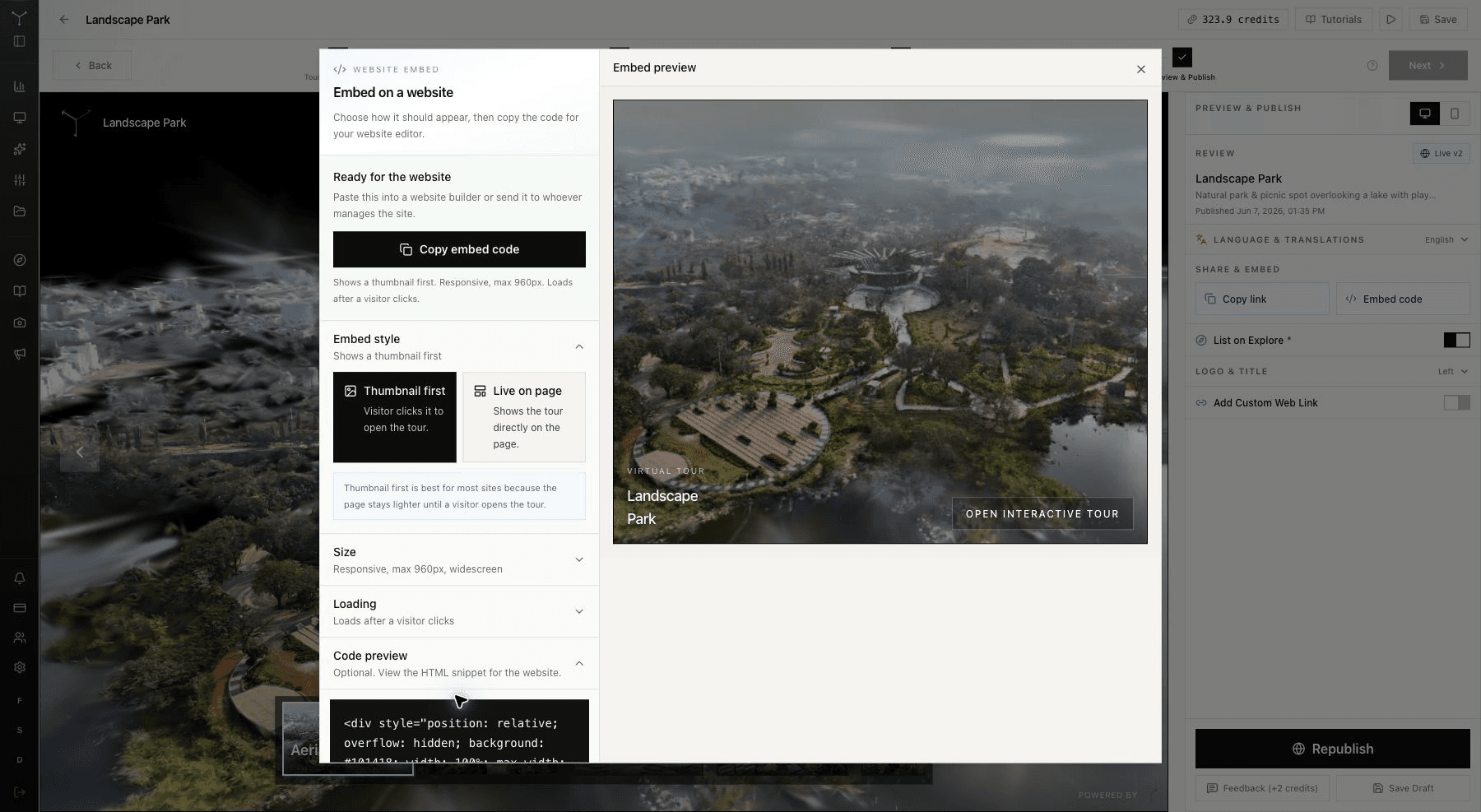
Spatial Studio's embed dialog lets you choose thumbnail-first or live-on-page embeds, sizing, aspect ratio, and loading behavior.
Basic responsive iframe code
Use this pattern when you want the live tour visible in the page:
<div
  style="position: relative; overflow: hidden; width: 100%; max-width: 960px; aspect-ratio: 16 / 9; background: #101418;"
>
  <iframe
    src="https://studio.realhorizons.ai/tours/YOUR_PROJECT_ID/view"
    title="Virtual tour"
    loading="lazy"
    allow="fullscreen; xr-spatial-tracking; accelerometer; gyroscope"
    allowfullscreen
    referrerpolicy="strict-origin-when-cross-origin"
    style="width:100%;height:100%;border:0;"
  ></iframe>
</div>
Replace YOUR_PROJECT_ID with the published tour ID from your Spatial Studio link.
The wrapper controls the size. The iframe fills the wrapper. aspect-ratio: 16 / 9 keeps the tour from collapsing on responsive pages. loading="lazy" keeps the tour from loading until the browser needs it.
Thumbnail-first embed code
Use thumbnail-first when the tour sits lower on a page, appears inside a listing page, or shares space with other media. This approach loads an image first, then swaps in the live tour when the visitor clicks.
<div
  style="position: relative; overflow: hidden; width: 100%; max-width: 960px; aspect-ratio: 16 / 9; background: #101418;"
>
  <button
    type="button"
    aria-label="Open virtual tour"
    onclick="(function(wrapper){var iframe=document.createElement('iframe');iframe.src='https://studio.realhorizons.ai/tours/YOUR_PROJECT_ID/view';iframe.title='Virtual tour';iframe.loading='lazy';iframe.allow='fullscreen; xr-spatial-tracking; accelerometer; gyroscope';iframe.setAttribute('allowfullscreen','');iframe.setAttribute('referrerpolicy','strict-origin-when-cross-origin');iframe.style.cssText='position:absolute;inset:0;width:100%;height:100%;border:0;';wrapper.innerHTML='';wrapper.appendChild(iframe);})(this.parentNode);"
    style="position: relative; display: block; width: 100%; height: 100%; cursor: pointer; border: 0; padding: 0; background: #101418; color: #ffffff;"
  >
    <img
      src="https://example.com/tour-thumbnail.webp"
      alt="Virtual tour preview"
      loading="lazy"
      style="position:absolute;inset:0;width:100%;height:100%;object-fit:cover;"
    />
    <span style="position:absolute;inset:0;background:rgba(0,0,0,0.38);"></span>
    <span
      style="position:absolute;left:24px;right:24px;bottom:24px;font:600 16px Inter,system-ui,sans-serif;"
    >
      Open interactive tour
    </span>
  </button>
</div>
Spatial Studio can generate this style from the Embed code dialog when the published tour has a thumbnail. The generated version uses your tour title, thumbnail, button text, and selected size settings.
Recommended sizing
Start with a responsive 16:9 embed at max-width: 960px. It works well for most article pages, property pages, and portfolio sections.
Use a larger width only when the tour is the main page content. Use a square or portrait ratio only when the site layout needs it and the tour still makes sense inside that crop.
| Placement | Suggested size | Notes |
|---|---|---|
| Blog or article body | Responsive, max 720px to 960px, 16:9 | Keep text readable around it. |
| Property or venue page | Responsive, max 960px to 1280px, 16:9 | Give the tour enough room to be useful. |
| Landing page hero section | Responsive, max 1280px, 16:9 | Consider a thumbnail-first preview. |
| Card grid | Responsive, square | Link to the full tour for deeper viewing. |
| Mobile-first story page | Responsive, portrait | Test controls and labels carefully. |
Do not set only width="100%" and a fixed height="600" without testing mobile. That can work on desktop, but it often creates awkward blank space or cramped controls on smaller screens.
Loading behavior
Use lazy loading for most embeds. It keeps the page usable before the visitor reaches the tour.
Use eager loading only when the tour is the main first-screen content and you have tested the page speed impact. A Gaussian splat viewer is heavier than an image or text block, so loading it too early can delay the rest of the page.
Thumbnail-first loading is a practical default for marketing pages because the page loads the preview image first. The full viewer loads only after a visitor clicks.
Platform notes
WordPress
Use a Custom HTML block. Paste the embed code directly, preview the page, then test the published URL. If WordPress strips inline script from the thumbnail-first version, use the live iframe version or ask the site admin to allow trusted custom HTML.
Webflow
Use an Embed element. Paste the code, publish the site, and test the live page. Webflow preview can behave differently from the published page for custom embeds.
Squarespace
Use a Code block. If the editor warns about scripts, use the live iframe version. Test desktop and mobile because some Squarespace templates place embeds inside narrow content columns.
Wix
Use the HTML Embed element. Set the element height in the Wix editor, then use the responsive wrapper inside the embed. Check the mobile layout separately because Wix may use a different mobile arrangement.
Shopify
Use a Custom Liquid section or a page template that allows HTML. For product pages, thumbnail-first is usually better because product media, variants, and checkout controls should stay fast.
React or Next.js
Render the iframe inside a fixed-ratio container. Avoid rebuilding the iframe on every state change.
export function TourEmbed() {
  return (
    <div style={{ position: 'relative', width: '100%', maxWidth: 960, aspectRatio: '16 / 9' }}>
      <iframe
        src="https://studio.realhorizons.ai/tours/YOUR_PROJECT_ID/view"
        title="Virtual tour"
        loading="lazy"
        allow="fullscreen; xr-spatial-tracking; accelerometer; gyroscope"
        allowFullScreen
        referrerPolicy="strict-origin-when-cross-origin"
        style={{ width: '100%', height: '100%', border: 0 }}
      />
    </div>
  );
}
Static HTML
Paste the responsive iframe code where the tour should appear. Keep it near supporting copy, a booking path, or a contact button so the visitor knows what to do after exploring.
SEO notes for embedded tours
Search engines can index the page around the embed more reliably than the 3D scene inside the iframe. Treat the surrounding page as the SEO page.
Add a clear heading, short description, location or use-case context when relevant, image alt text, and a link to the full tour. If the tour supports a property listing, venue, hotel, museum, or campus page, describe the space in normal page copy instead of relying on the embedded viewer to carry all context.
Use one canonical page for important tours. If you embed the same tour on many pages, decide which page should rank and avoid making several thin pages with the same copy.
Accessibility checks
Give the iframe a useful title. If you use a thumbnail-first button, give the button a clear aria-label and use image alt text that describes the preview.
Keep button text short. Make sure the embedded area is tall enough for controls, labels, and hotspots on mobile. If the tour is important to the page, include a normal text link to the full tour near the embed.
Troubleshooting
The embed shows a blank area
Check that the tour is published, the URL is correct, and the site is not blocking iframes with a strict content security policy. If the embed is inside a hidden tab or carousel, test it in a normal visible section first.
The tour is too small on mobile
Use a responsive wrapper with an aspect ratio instead of a fixed height. If the surrounding page column is narrow, move the embed into a wider section or link to the full tour.
The page feels slow
Switch to thumbnail-first, keep loading="lazy", and avoid placing several live iframes on one page. If you need to show many tours, use preview cards that link to each tour.
Fullscreen does not work
Confirm the iframe includes allowfullscreen and allow="fullscreen; xr-spatial-tracking; accelerometer; gyroscope". Some website builders place embeds inside wrappers that can interfere with fullscreen, so test the published page, not only the editor preview.
The first view is confusing
Fix the tour, not the embed. Set a better opening view, add waypoints, and republish before copying the code again.
Pre-launch checklist
- Raw splat files have been checked in the Spatial Studio Splat Viewer before publishing.
- The tour is published and opens in a normal browser tab.
- The first view explains the space.
- The embed has a clear title.
- The wrapper has a stable aspect ratio.
- Lazy loading is enabled unless the tour is first-screen content.
- The mobile layout is readable.
- The page includes context around the tour.
- The CTA or next link is visible after the visitor explores.
- Analytics are ready for tour opens, source campaigns, waypoint use, hotspot clicks, and CTA clicks.
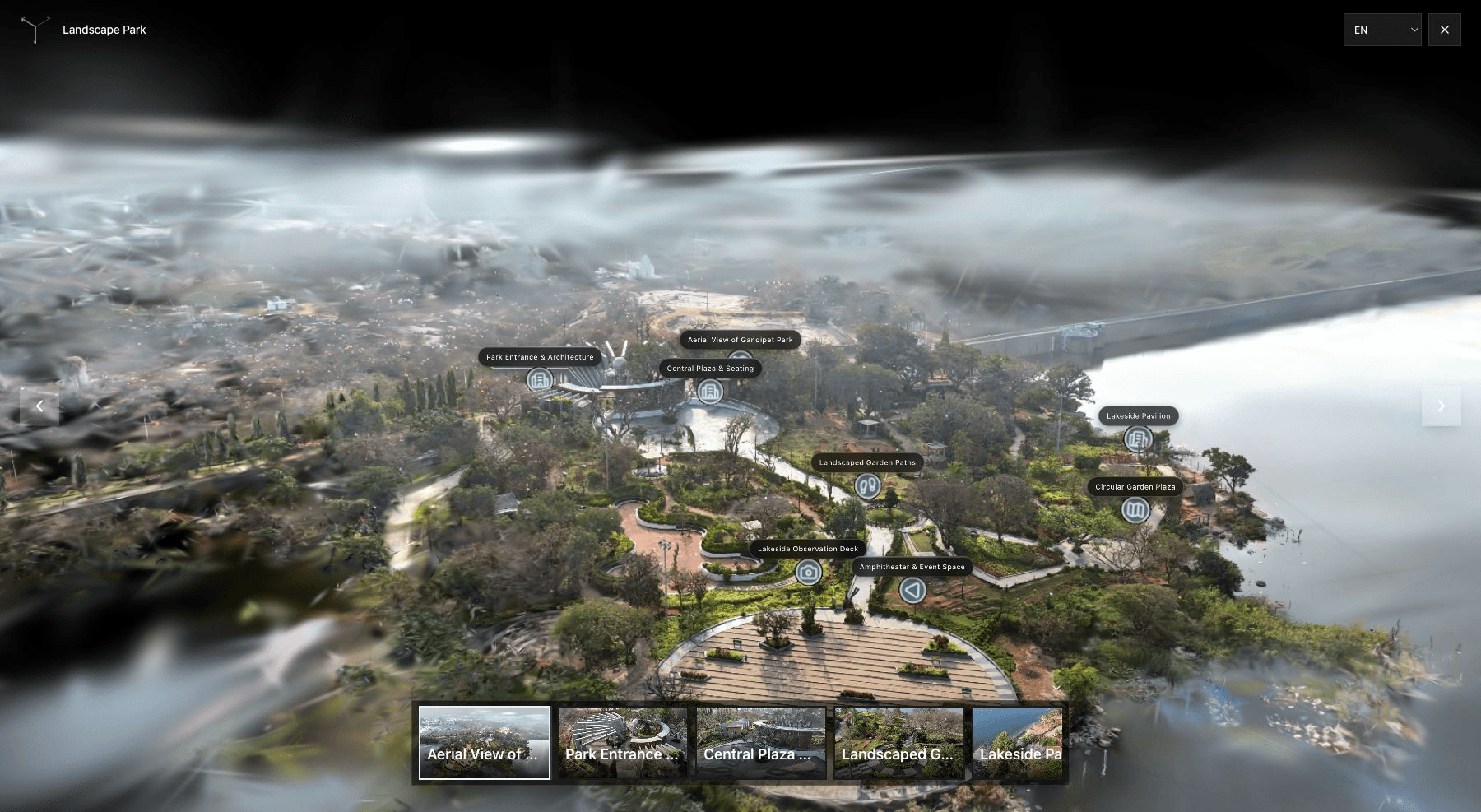
A published Spatial Studio tour should open with a clear first view, readable labels, and enough room for visitors to move.
Related reading
- Gaussian Splat Viewer Online
- Gaussian Splat Hosting: What Matters for Client Tours
- Hotspots for Gaussian Splat Tours
- Splat Virtual Tour Software
Frequently asked questions
Can I embed a Gaussian splat viewer on any website?
You can embed it on websites that allow iframe or custom HTML embeds. Some CMS plans, ad networks, listing portals, or marketplace pages restrict custom HTML, so test the exact publishing surface.
Should I use a raw splat viewer or a finished tour?
Use a raw viewer for technical review. Use a finished tour when visitors need a clear start view, waypoints, hotspots, branding, a link, a CTA, or analytics.
Does an embedded Gaussian splat help SEO?
The page around the embed can help SEO when it has useful copy, metadata, internal links, and a clear topic. The iframe alone is not enough. Write the page for the visitor and include the tour as supporting media.
Can I embed more than one splat tour on a page?
Yes, but avoid several live iframes on one page. For pages with multiple tours, use thumbnail-first embeds or preview cards.
Do visitors need special software?
No. A published browser tour should open from a normal web link or iframe. Visitors do not need to download a desktop viewer.
What should I measure after launch?
Track tour opens, traffic sources, waypoint use, hotspot clicks, CTA clicks, and follow-up quality. Those signals show whether the embedded tour is helping the page do its job.
Next step
Publish one tour, embed it on a real page, and test it like a visitor. If the page loads cleanly, the first view is clear, and the next step is obvious, the embed is ready to send.
Next step
Open your tours to publish and embed
Open your tour workspace, publish the scene, then copy the embed from Share & Embed.
Continue reading
Related articles
Tour Publishing
How to Embed a Gaussian Splat Tour on a Website
Embed a Gaussian splat tour on a website with cleaner layout, loading behavior, responsive sizing, CTA placement, and tracking.
Read articleTour Publishing
360 Tour vs Gaussian Splat Tour
Compare 360 tours and Gaussian splat tours by capture speed, viewer experience, mobile performance, embeds, and sales use.
Read article