DJI Osmo 360 II and Gaussian Splatting: What We Know
Track confirmed DJI Osmo 360 II facts, separate leaks from evidence, and learn how current Osmo 360 footage can become a Gaussian-splat tour.

Track confirmed DJI Osmo 360 II facts, separate leaks from evidence, and learn how current Osmo 360 footage can become a Gaussian-splat tour.
DJI Osmo 360 footage already has a practical 360-to-3DGS path. Osmo 360 II is real enough to appear in certification records, but its imaging upgrades, global release, and Gaussian-splat support are not yet confirmed by an official DJI product page.
The short answer
The current DJI Osmo 360 can provide useful spherical video for Gaussian-splat reconstruction. Real Horizons has an Osmo 360-based example tour, and the same source can move through generation, quality review, and guided tour publishing in Spatial Studio.
Osmo 360 II is a different evidence problem. A public certification record identifies model OQ002 under FCC ID 2ANDR-OQ0022512, and published filing images show a 2,150 mAh battery. At the time of this update, Google does not surface an official DJI product page for "Osmo 360 II," and DJI has not published a global specification page that confirms the rumored sensor, frame-rate, price, or launch claims.
Treat the camera as forthcoming, not fully specified. Do not postpone a paid workflow around rumor-only upgrades.
You do not need to wait to test the workflow. Export a complete 2:1 video from the current Osmo 360 and run it through Real Horizons' Spatial Studio. Its 360-handheld path covers cloud splat generation, quality and LOD choices, downloadable output, and guided-tour publishing without tying the rest of your business to one camera brand.
Confirmed, reported, and still unknown
| Status | What we know | How to use it |
|---|---|---|
| Confirmed by certification | The OQ002 device and FCC ID 2ANDR-OQ0022512 exist under SZ DJI Osmo Technology. | Strong evidence that DJI prepared a second 360-camera model. |
| Visible in filing material | A 2,150 mAh battery and a body closely resembling the original Osmo 360 appear in public filing images. | Reasonable evidence for a battery increase and familiar physical design. |
| Reported by leak coverage | 8K60, revised imaging hardware, regional launch dates, and pricing circulate in camera-news and community posts. | Track these as rumors until DJI publishes a product page or manual. |
| Not confirmed | A built-in Gaussian-splat or 3DGS workflow, exact export behavior, global availability, and final accessory compatibility. | Do not make a purchase or client promise around these claims yet. |
Certification is evidence of hardware, not proof of retail availability or final marketing specifications. A leaked unit can also differ from the version sold in a specific region.
Sources: FCC ID 2ANDR-OQ0022512 record, DJI's current Osmo 360 product page, and conservative certification coverage.
What the current Osmo 360 already proves
DJI's official first-generation page describes native 8K 360 capture, 120MP panoramic photos, 10-bit D-Log M, internal storage, and high-resolution single-lens modes. Those are camera facts. The more useful workflow proof is that Osmo 360 footage can be processed into a navigable Gaussian-splat scene.
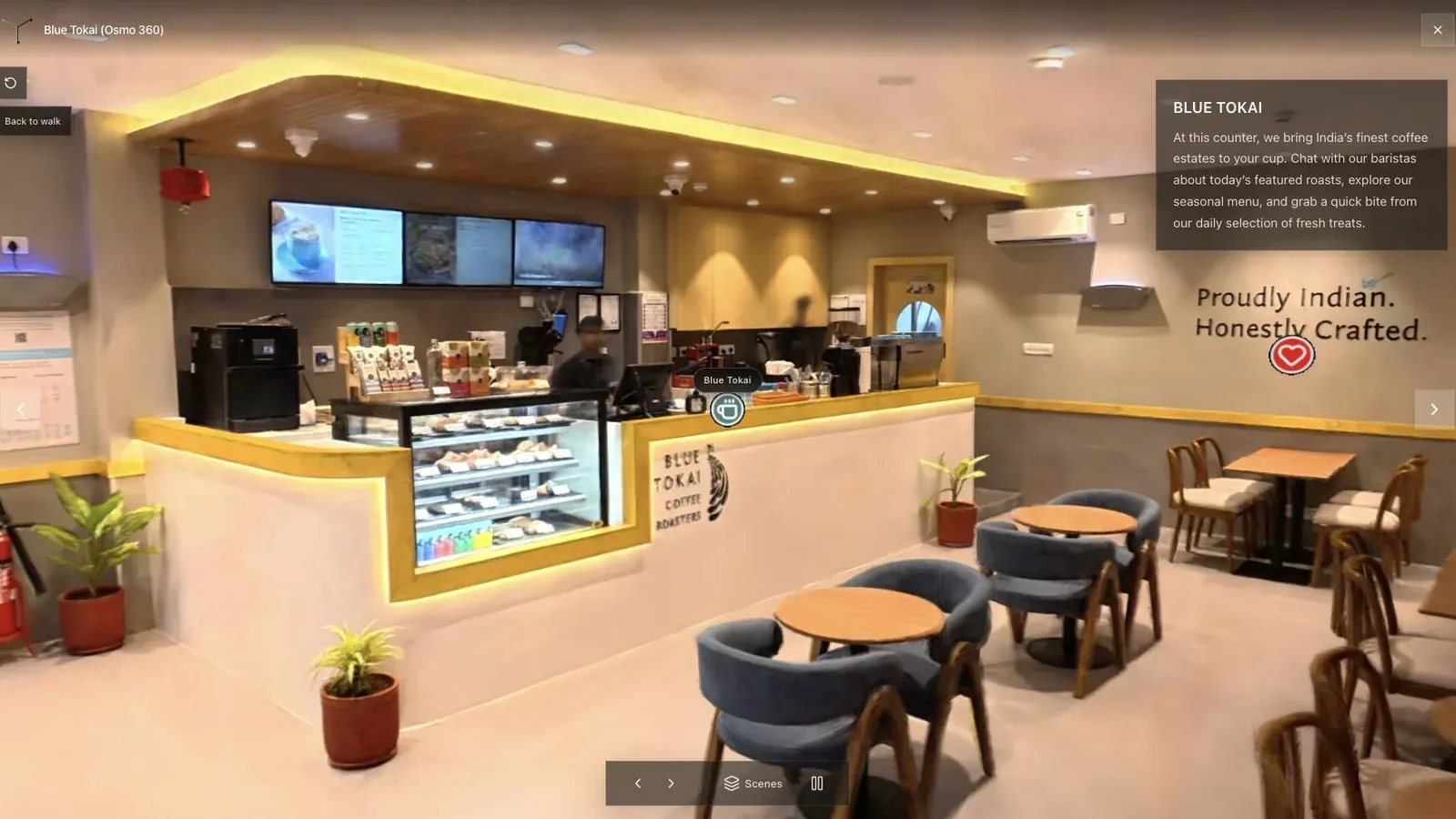
This Osmo 360-based cafe scene is a better workflow test than a specification table because it exposes glass, narrow paths, stitching, and mixed light.
Open the Osmo 360-based Real Horizons tour and inspect the route rather than only the first view. Look at counter edges, reflections, doorway continuity, the floor below the camera, and how the scene behaves on a phone.
Osmo 360 capture checklist for 3DGS
| Check | Good sign | Risk signal |
|---|---|---|
| Route | Slow, connected movement with extra doorway overlap. | Fast turns, skipped corners, or disconnected room clips. |
| Light | Readable shadows and windows with stable exposure. | Blown windows, dark corners, or abrupt exposure shifts. |
| Stitching | Important edges stay clean across the lens handoff. | Signs, frames, furniture, or railings break at the seam. |
| Surface distance | The camera stays far enough from walls and furniture to see usable parallax. | One lens passes very close to flat or reflective surfaces. |
| Source file | The processing route accepts the chosen mode without a low-quality conversion. | Compatibility is discovered only after the paid capture. |
| Delivery | The published tour opens clearly on desktop and mobile. | The team approves only a raw reconstruction preview. |
Run this checklist on the original Osmo 360 today. If Osmo 360 II launches with better imaging or battery life, use the same route to find out whether those changes actually improve registration and scene quality.
A controlled Osmo 360 versus Osmo 360 II test
When production units and official documentation are available, compare the cameras on one fixed route:
- Update both cameras and record the firmware versions.
- Use the closest equivalent resolution, frame rate, exposure, and color settings.
- Mount both cameras at the same height and walk at the same speed.
- Keep the lighting and processing pipeline unchanged.
- Use the same frame-selection or direct-upload method.
- Compare registration success before comparing the prettiest view.
- Inspect doorways, windows, mirrors, thin objects, distant coverage, and file size.
- Publish both scenes with the same opening view and mobile viewer settings.
Battery runtime and a higher frame-rate option can improve field convenience. They do not prove a better splat unless more frames remain sharp, consistent, and useful to reconstruction.
Where Osmo footage is a good source
Osmo 360 is a practical source for properties, venues, hospitality interiors, campuses, public spaces, and outdoor routes where one spherical pass can gather broad context. It works best when the operator can slow down, manage exposure, and recapture the difficult transition before leaving.
Use another source or mix media when:
- premium object detail matters more than coverage speed;
- glass and mirrors dominate the space;
- the route contains tight stairs or narrow gaps;
- the site needs aerial context;
- the deliverable requires survey-grade geometry or measurements;
- the team needs a confirmed local-only processing path.
Spatial Studio lets the capture choice follow the scene. Osmo footage can cover the connected space, while phone, drone, or photo inputs handle the parts a single 360 route cannot.
Why Real Horizons is more than a 360-to-splat converter
A Gaussian splat is a reconstruction. A client-ready tour is a communication product.
After generation, inspect the scene, set a useful opening view, name important stops, add hotspots or floor-plan context, and choose one business action. A property tour may point to an inquiry or booking. A venue tour may point to an event request. A construction record may link to the relevant milestone or documentation.
Spatial Studio carries the job from cloud splat generation into scene review, guided browser navigation, website embeds, CTAs, and analytics around the finished tour. It also keeps the team from locking every project to one camera brand.
That flexibility matters on real sites. Use an Osmo 360 pass for fast connected coverage, phone or photo capture where fine detail matters, and drone media for exterior context. Spatial Studio keeps generation, review, download, authoring, publishing, and measurement in the same client-facing workflow.
Should you wait for Osmo 360 II?
Wait when the purchase is optional, you need a specific rumored improvement, and you can verify an official local product page before the next job. Buy or keep using the current Osmo 360 when you already have a tested file path and a real project now.
Use this decision rule:
| Situation | Sensible move |
|---|---|
| You already own Osmo 360 and it produces acceptable splats. | Keep working; compare generation two only after official specs and files are available. |
| You need a camera for a paid capture this week. | Buy from documented current options and test before the shoot. |
| You need a confirmed 360-to-Gaussian-splat app feature. | Insta360 X6 has an official Spatial Capture claim; DJI has not published an equivalent Osmo 360 II claim. |
| Battery life is the only blocker. | The filing suggests a larger battery, but wait for official runtime tests. |
| You need 8K60, removable lenses, or a specific price. | Those details are not confirmed by DJI; do not treat leaks as a buying specification. |
Frequently asked questions
Has DJI Osmo 360 II launched?
Certification and leaked hardware evidence exist, but an indexed official DJI global product page was not available when this article was updated on August 13, 2026. Regional announcements can precede global documentation, so verify DJI's store for your country before ordering.
Does Osmo 360 II support Gaussian splatting?
DJI has not published an official built-in Gaussian-splat workflow for Osmo 360 II. That does not prevent its 360 footage from becoming a splat through an external processing path, but the exact modes and files need testing.
Can current Osmo 360 footage become a Gaussian splat?
Yes. Use slow, stable spherical footage, test the exact source file, and inspect the generated scene. Real Horizons has a public Osmo 360-based example linked above.
Does 8K guarantee a better splat?
No. Resolution cannot recover motion blur, dirty lenses, poor stitching, changing exposure, or missing doorway coverage.
Is Osmo 360 II better than Insta360 X6 for 3DGS?
There is not enough verified evidence for that conclusion. X6 has official specifications and an explicit Spatial Capture feature. Osmo 360 II needs an official spec sheet and a controlled reconstruction test. See the X6 versus Osmo 360 II tracker.
Related reading
- Insta360 X6 vs DJI Osmo 360 II for Gaussian Splatting
- Insta360 X6 Spatial Capture and 3DGS Guide
- 360 Video to Gaussian Splatting for Real Estate
- Video to Gaussian Splat
- Gaussian Splat Viewer
- Gaussian Splatting Software
Turn Osmo footage into a deliverable
Start with the Osmo 360 you can test today. Export a complete 2:1 video, generate the splat in Spatial Studio, inspect the difficult transitions, then either download the result or build the browser tour your client will receive. Repeat the same route when Osmo 360 II production files become available.
Next step
Open the related workflow.
Review live examples or move straight into the matching Spatial Studio flow.
Continue reading
Related articles
Capture Workflows
360 Camera Gaussian Splatting: From 360 Video to 3DGS
Compare 360 cameras for Gaussian splatting, then turn 360 video into 3DGS. Covers Insta360, DJI Osmo 360, capture, processing, and publishing.
Read articleCapture Workflows
How to Make a Gaussian Splat on Mac from Photos or Video
Create a 3D Gaussian splat locally on an Apple silicon Mac from photos or video. Follow the capture, processing, review, export, and publishing workflow.
Read article